
Paper registers get lost, names get misread, and roll call eats the first five minutes of every session. QR attendance fixes all three, and you do not need a student information system to do it. A Google Sheet is enough.
This guide covers the free approach first, because for many schools it is genuinely sufficient, then it is specific about where the free approach falls down.
How do I take QR code attendance with a free Google Form?
The best-known approach is a Google Form whose QR code is printed and displayed. Students scan it with their phone camera, the form opens, they enter their name or ID, and the response lands in a linked Sheet. It is free and can be running in ten minutes.
- Create a Google Form titled for the session, with fields for student ID and class.
- Link it to a Google Sheet under the Responses tab.
- Generate a QR code pointing at the form URL and print it for the classroom door.
- Students scan and submit as they arrive.
Where the Forms method breaks down
- Every student needs a phone with a working camera and data. That assumption fails in most classrooms below a certain age, and unevenly above it.
- It is self-reported. A student can submit for an absent friend, or submit twice, or from the car park. There is no proof of presence.
- There is no offline handling. A submission with no signal is lost, and school wifi is frequently the weak link.
- One shared form means one shared timestamp stream; separating period 1 from period 2 becomes a data-cleaning task.
- Students can typically edit or resubmit responses depending on settings, which is not what you want in a register.
The self-reporting problem is the important one. If attendance carries any consequence — funding, safeguarding, grades — a method a student can trivially game is the wrong method, regardless of price.
What changes when a teacher scans each student?
Inverting the direction fixes most of the above. Instead of every student scanning a shared code, one member of staff scans each student's code as they enter. Now the phone requirement lands on one adult rather than thirty children, presence is witnessed rather than claimed, and the queue moves at roughly one student per second.
This is the model QR to Sheets is built for, and its QR attendance system for schools page shows the whole-school setup, so read the rest of this section with that in mind. A member of staff opens a scanner link in their phone browser, allows the camera once, and scans students in. Each scan appends a timestamped row to the school's own Google Sheet. Staff do not create accounts and do not install anything, which matters when the person on the door is a substitute or a volunteer.
Which method should a school choose?
| Capability | Google Forms / Apps Script (DIY) | QR to Sheets |
|---|---|---|
| Cost | Free | Free to 300 scans, then $7 per device per month |
| Who needs a phone | Every student | One member of staff |
| Proof of presence | Self-reported | Witnessed by staff |
| Camera scanner included | No, uses the phone camera to open a form | Yes, in the browser |
| Works with no signal | No | Buffers on device, syncs later |
| Separate sessions cleanly | One form, needs cleanup | One link per session or class |
| Where data lives | Your Google Sheet | Your Google Sheet |
Privacy, because this is student data
Attendance records about identifiable children carry obligations under GDPR, FERPA, or your local equivalent, whatever tool you use. A few things that make compliance easier rather than harder:
- Encode student IDs rather than names in the QR codes. A found lanyard then reveals nothing.
- Keep the Sheet in a school-controlled Drive with explicit sharing, not a personal account.
- Decide a retention period for the raw scan log and actually apply it.
- Check what any third-party tool can access. A tool restricted to the specific spreadsheet you selected is much easier to justify than one with broad Drive access.
- Record the lawful basis for processing, and tell parents in the privacy notice you already maintain.
What else can the same student codes track?
Once codes are printed and a scanning habit exists, the same setup handles device and textbook loans, exam room entry, club sign-in, trip headcounts, and equipment checkout. The pattern is identical; only the destination Sheet changes. The same QR code attendance approach covers staff, clubs and events outside the classroom.
What happens if a student scans twice?
Duplicate scans are the most common thing that goes wrong on day one, and almost no attendance guide addresses it. A student joins the back of the queue again, a member of staff is unsure whether the first scan registered, or a code sits face-up on a desk and gets read twice as a phone passes over it. Decide in advance what you want the system to do about it, because the two possible behaviours give you very different registers.
There are two design choices. A system can refuse the second scan, or it can record it and tell you. Refusing feels tidy but destroys information: you can no longer tell the difference between a student who scanned once and a student whose second scan was silently thrown away, and you cannot audit a dispute later. Recording and informing keeps the log complete and pushes the decision into the spreadsheet, where you can change your mind without losing data.
QR to Sheets takes the second approach, so treat this as a description of one design rather than a claim about every tool. When the same value is scanned again within a twelve-hour window, an amber badge appears on the scanner showing the repeat count and the words "Saved anyway". By default both scans are saved and the repeat is flagged. If the repeat lookup is unavailable for any reason the scanner fails open, so the badge simply does not appear and scanning carries on. An admin who does want refusals can switch off a link's Accept duplicate scans setting, and that link then records each code once.
That means deduplication is a spreadsheet decision, not a scanner decision. A register built as a pivot table counting scans per student per day is already immune, because a student with two scans still shows as present. If you want a strictly deduplicated list, wrap the log in a UNIQUE or QUERY formula on a separate tab and leave the raw log alone. The important consequence for a school is that the raw log stays complete and auditable, which is exactly what you want if a parent or a manager queries a record months later. The guide to handling duplicate QR scans has the formulas for each choice.
Does QR attendance stop students signing in for each other?
Not by itself, and any tool that claims otherwise is overselling. A QR code is a printed token. A scan proves that a particular code was presented to a particular camera at a particular time. It does not prove that the person holding the code owns it. This is the same problem that swipe cards and PIN pads have had for decades, and it is usually described as buddy punching or proxy attendance.
What changes the picture is who does the scanning. When students scan a shared code with their own phones, nothing is witnessed and a code can be photographed and shared in a group chat within seconds. When an adult scans each student at the door or at their desk, the adult is the verification layer: they are looking at the face while the camera reads the card. The technology has not solved proxy attendance, but the workflow has moved it back into the room, where a teacher was already solving it.
- Encode the student ID, not the name, so a found or photographed card is less useful to whoever finds it.
- Have an adult scan rather than letting students scan a shared code. This is the single biggest change, and it costs nothing.
- Treat a repeat-scan badge as a prompt to look up, not as an error. Two scans of the same code in quick succession is worth a glance.
- Cross-check the scan log against a headcount occasionally rather than continuously. A weekly spot check finds a pattern; daily suspicion does not.
- Compare scan timestamps against the period start when a student is habitually marked present but never seen. The log makes that question answerable, which paper never did.
The honest summary: QR attendance removes transcription errors, lost paper, and self-reporting from the car park. It reduces casual proxy attendance because someone is watching. It does not eliminate a determined student handing their card to a friend, and no camera-based system priced for a school will. Whether QR attendance can stop buddy punching goes through the workflow changes in more detail.
How do I stop students scanning the attendance QR code from home or from a screenshot?
With one code that students scan on their own phones, you cannot fully stop it. A Google Form QR code is only a link: one student photographs it, posts it in a group chat, and a friend at home opens the form and submits. Settings help at the edges. Restricting the form to your school's Google accounts and limiting it to one response per person stops anonymous and repeat submissions, and turning off Accepting responses when the lesson ends closes the window, but none of that proves the person submitting is in the room.
Some attendance tools rotate the code every few seconds or check the phone's location. Both raise the effort and both can be worked around, by a student relaying a live photo of the screen or by indoor location readings that drift, and both keep the assumption that every student has a phone.
The change that removes the problem is reversing who scans. When the teacher scans each student's own printed card, there is no shared code to screenshot: a student at home has nothing to scan and nobody to scan them. Each row records the time of the scan, the link it came from and the type of device that scanned it, so a mark taken at 08:52 on that class's link means someone with the scanner link open had that card in front of the camera at 08:52. A card can still be handed to a friend, as the previous section says, but the friend then has to stand in front of the teacher.
What about students without a smartphone?
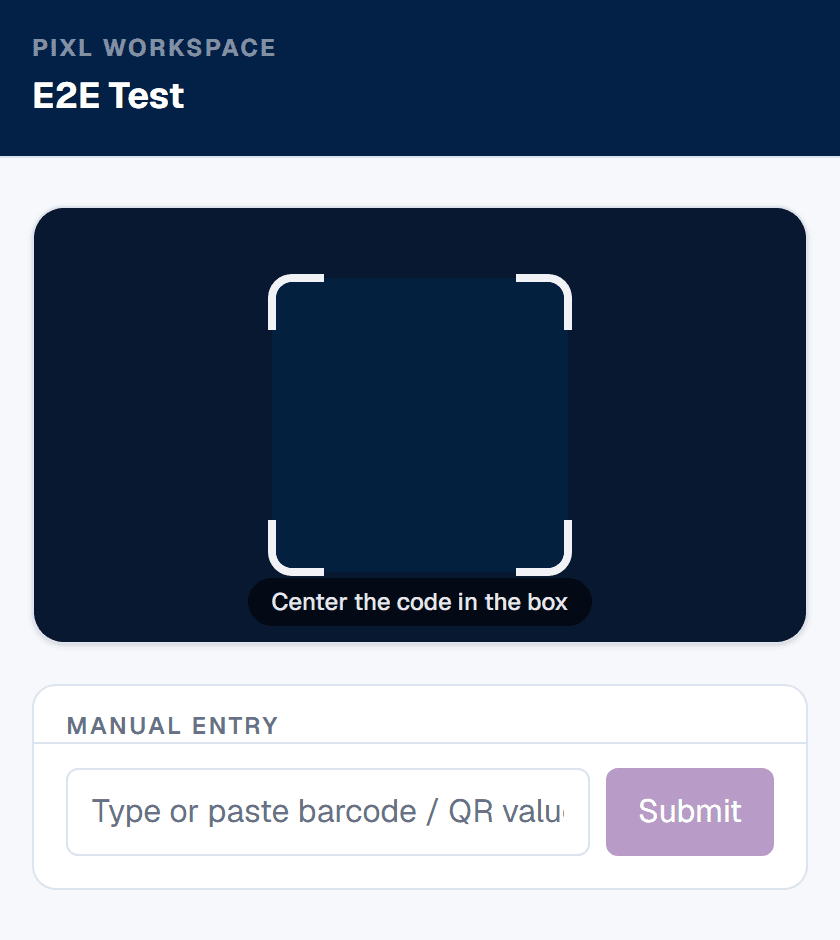
In a staff-scanning setup this question disappears, and it is worth stating plainly because it is the assumption that quietly rules out the free Google Forms route in most schools. A student needs a printed code. That is all. No phone, no data plan, no account, no app, and no sign-up. The device requirement lands entirely on the adult holding the scanner.
This matters beyond convenience. Phone ownership in a class is uneven along lines a school is obliged to be careful about, and a register that works better for students with newer phones is a register with a built-in bias. Printed codes are equal: a laminated card in a lanyard, a sticker inside a planner, or a label on the corner of a desk all read the same way.
Plan for the students who arrive without their card, because there will be some every day. Keep a small stack of spare printed codes and a manual entry fallback where the ID can be typed by hand. Both should be part of the routine rather than an exception you handle case by case, and it is worth telling a cover teacher about the fallback in the same message as the link. For other setups, including a shared tablet, see QR attendance for people without smartphones.
How do I get attendance out of Sheets and into our SIS?
Most schools already have a student information system, and the register that counts legally is the one in there. Treat the Sheet as the capture layer and the SIS as the system of record, rather than trying to replace one with the other. That framing keeps the project small enough to actually finish.
The practical route is a pivot table over the raw scan log, keyed on student ID and date, exported as CSV and imported through whatever bulk attendance import your SIS already supports. Almost all of them have one, because they were built for the era of scanning paper marksheets. Keep the student ID column identical to the identifier the SIS uses; a mismatch there is the reason most imports fail, and it is far cheaper to fix at printing time than at import time.
- Match the identifier first. Whatever the SIS calls a student is what belongs inside the QR code.
- Export the pivot, not the raw log. The SIS wants one mark per student per session, not one row per scan.
- Agree who does the import and when. A daily manual export that nobody owns will lapse inside a fortnight.
- Keep the raw log after the import. If the import is wrong, the log is the evidence that lets you correct it.
- Check what your SIS import expects for a late mark before you build the formula that produces one.
If you want the export to be near-automatic, a small Apps Script on a time trigger can write the pivot to a CSV in Drive on a schedule. That is free, it lives in the same Google account as the Sheet, and it is a genuinely reasonable use of Apps Script even if you chose a dedicated scanner for the capture step. The full walk-through is in exporting QR attendance from Google Sheets to your SIS.
Can I use Excel instead of Google Sheets?
Yes for the free route, with one extra step. Google Forms keeps its responses in Google, but you can take them out whenever you like: the Responses tab downloads a CSV, and the linked Sheet downloads as an Excel workbook from File, Download, Microsoft Excel (.xlsx). Plenty of schools take the register in Google and do their termly analysis in Excel.
To be plain about our own product: QR to Sheets writes to Google Sheets only. It does not write to an Excel workbook or to OneDrive directly. The same export works, so a teacher who reports in Excel downloads the Sheet as .xlsx or CSV when they need it while the live register keeps filling in Google Sheets. If your school blocks Google accounts entirely, check that before you print a single code, because setting up the link needs one.
Can I see each student's attendance history?
Yes, and the one-row-per-scan log is what makes it easy. Every scan is a row with a timestamp and a student ID, so one student's history is a filter on their ID: every date they were scanned, in order, with the time of each scan.
For totals, COUNTIFS counts sessions attended per student over any date range, for example =COUNTIFS(B:B, "S1042", A:A, ">="&DATE(2026,9,1)) with timestamps in column A and student IDs in column B. A pivot table with student ID as rows and date as columns turns the whole log into a register grid where an empty cell is an absence, and dividing each student's count by the number of sessions held gives an attendance percentage.
If a student can be scanned twice in one session, count distinct days rather than rows, for example =COUNTUNIQUE(FILTER(INT(A2:A), B2:B="S1042")), so a repeat scan does not inflate the figure.
Step by step
- 1
Give every student a durable QR code
Encode the student ID, not the name. IDs are stable, unambiguous between two students with the same name, and do not need reprinting when a name changes. Print onto ID cards or lanyards, or let students keep the image on their phone.
- 2
Build the attendance spreadsheet
One row per scan is far easier to work with than one row per student per day. Columns: timestamp, student ID, class or session, and who scanned. Pivot into a register later; do not try to write the register directly.
- 3
Set up the capture method
Either a Google Form that staff paste scans into, or a scanner link that staff open on their own phone. Decide who scans: staff scanning students is far more reliable than students self-reporting.
- 4
Trial with one class before rolling out
Run one session end to end. Watch how long the queue takes, whether the codes read under the corridor lighting, and whether the timestamps line up with the period boundaries.
- 5
Turn scans into a register
Use a pivot table over the scan log, keyed on student ID and date. Keep the raw scan log immutable; build every report as a view on top of it.
Frequently asked questions
Do students need to install an app for QR attendance?+
No. With the Google Forms method they use the built-in phone camera to open a form. With a staff-scanning setup, students need nothing at all — only the member of staff scanning has a device, and they use a browser.
Is the Google Forms method good enough for a school?+
For low-stakes registers such as a club or an optional session, often yes, and it is free. For anything with a consequence attached it is weak, because it is self-reported: a student can submit on behalf of an absent friend, and there is no offline handling.
Should the QR code contain the student name or the student ID?+
The ID. It is stable, it disambiguates students with the same name, it does not need reprinting after a name change, and a lost card does not expose personal information.
How do I turn a scan log into a register?+
Keep one row per scan and never edit that log. Build the register as a pivot table over it, keyed on student ID and date. This keeps the underlying record auditable and lets you regenerate any report.
How fast is scanning a class in?+
With one member of staff scanning at the door, roughly one student per second in practice, so a class of thirty takes well under a minute. The limiting factor is usually the queue, not the scanner.
What about students who forget their code?+
Keep a manual fallback. A good scanner allows typing the ID by hand, and you should expect to use it daily. Plan for the exception rather than treating it as a failure.
What happens if a student scans their QR code twice?+
By default the scan is recorded, not refused. In QR to Sheets, a repeat of the same value within twelve hours shows an amber badge with the repeat count and "Saved anyway", and the row is still written. Deduplication is then a spreadsheet decision — a pivot table counting scans per student per day is already immune to it. A link can also be set to refuse repeats, but for a daily register that would block the next day's scan, so leave it on.
Can students use a QR code to sign in for an absent friend?+
Yes, if nobody is watching. A QR scan proves a code was presented, not who presented it. Having an adult scan each student is what prevents it in practice, because the adult sees the face while the camera reads the card. No camera-based attendance system priced for a school eliminates this on its own.
Does QR attendance work if the school wifi drops?+
With a scanner link, yes. Scans are written to the device first as a local CSV backup and retry queue, then synced when signal returns, so staff keep scanning through a dead spot. A Google Form loses a submission made with no signal outright, which is the more common failure in a corridor.
Do students need a smartphone for QR attendance?+
Not when staff do the scanning. Students need only a printed code on a card, planner, or desk label. The device requirement lands on one adult, which also avoids a register that works better for students who happen to own newer phones.
Can two members of staff scan the same class at once?+
Yes. One scanner link can be opened on any number of phones, so two doors or two form groups can run in parallel into the same Sheet. On the paid plan you are billed per registered device rather than per link or per student, so the cost is set by how many phones scan, not how many students you scan.
Will the timestamps match our school day?+
They will if the workspace timezone is set correctly. QR to Sheets writes YYYY-MM-DD HH:MM:SS in the timezone you set under admin settings, so late marks compare cleanly against period start times. A raw ISO timestamp is stored by Sheets as text, which silently breaks sorting and any formula that treats it as a time.