
Most QR attendance guides quietly assume that everyone being counted has a smartphone, a data plan and the patience to open a form. Plenty of groups do not: primary school pupils, schools with a phones-away policy, older volunteers, day labourers on sites that ban phones, and anyone on a basic handset. For them, the usual advice is not advice at all.
The fix is to reverse who scans. The person being counted carries a printed code. Someone else holds the scanner. That one change removes the phone requirement from everybody except the one person doing the counting.
Written by QR to Sheets, so read the product section as vendor material. The free routes below are real options, and for a small group one of them may be all you need.
Why the free poster route leaves people out
The best-known free setup prints a QR code that opens a Google Form. Each attendee scans it with their own phone and types a name or ID. It is free and quick to set up, and it has a phone requirement built into it.
- Every attendee needs a working camera phone. That rules out young children entirely and many older people in practice.
- Every attendee needs signal. A submission attempted with none is lost, and the people least likely to have a data plan are the ones who lose it.
- It is self-reported, so the register records whoever typed, which is also how proxy sign-in happens.
- A register that works better for people with newer phones is a register with a bias built into it, which a school or charity has good reason to avoid.
Free routes that do work without attendee phones
- A paper register or sign-in sheet. Genuinely fine for a small, stable group, and the only option that needs no device at all. The cost arrives later, when someone types it up.
- A Google Form filled in by one staff member. The attendee says their name or shows their card; the staff member types or picks it on their own phone. Free, and it moves the phone requirement to one person. It is slow per person, and typed names produce spelling variants that break formulas.
- A USB barcode scanner plugged into a laptop, typing into an open Google Sheet. The scanner behaves like a keyboard, so each card scanned becomes a cell. It needs a laptop at a desk and the sheet open and selected in the right cell.
Printed codes and one staff scanner
This is the model QR to Sheets is built for. A staff member opens a scanner link in their phone browser, allows the camera once, and scans each person's printed code as they arrive. Each scan becomes a timestamped row in your own Google Sheet. The staff member creates no account and installs nothing, which matters when the person on the door is a volunteer or a substitute.
The people being counted need nothing at all: no phone, no app, no account and no sign-up. A laminated card reads the same whether its owner has the newest phone or none.
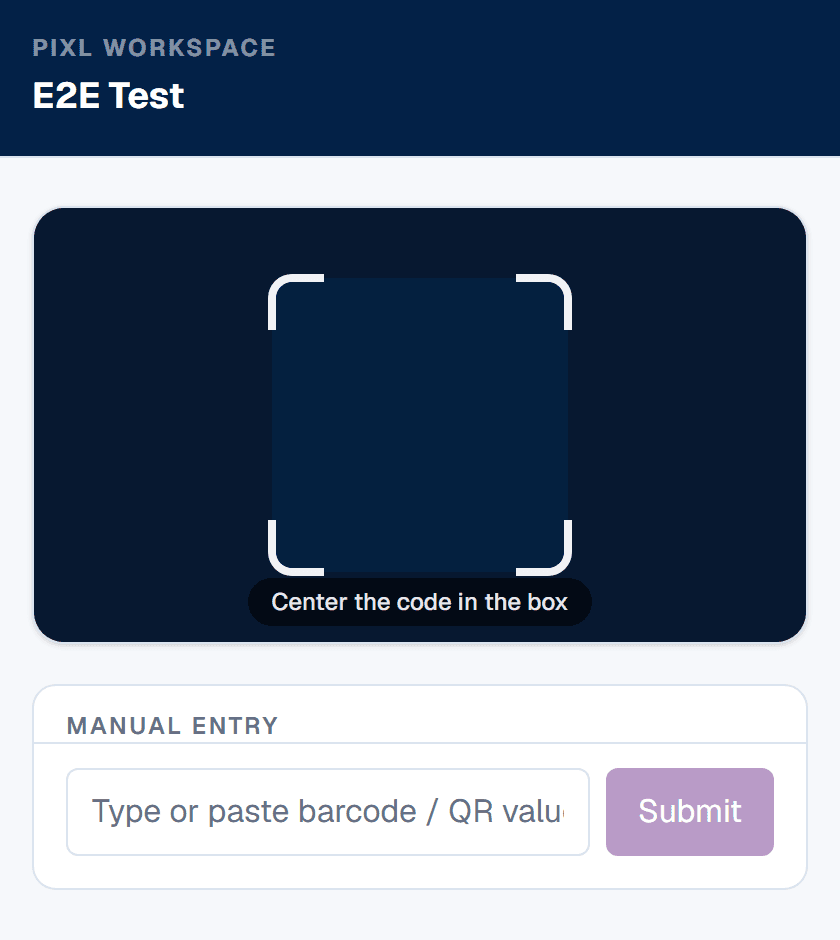
- Forgotten card: type the ID into the manual entry box under the viewfinder. It writes the same row a scan would.
- No signal: the scan is saved on the staff phone first and syncs when the connection returns, and the phone keeps a CSV backup that can be downloaded at any time.
- Several doors: one scanner link can be open on any number of phones. On the paid plan you pay per registered device, not per person counted.
- Staff phone requirements: a current iPhone or Android browser, Safari 16.4 or Chrome 111 and later. Laptop webcams usually struggle to focus on a card held close, so use a phone or tablet camera.
One shared tablet at a station
If there is no staff member free to scan, a tablet left open on the scanner link at the entrance works as a station. People hold their card to the camera as they pass. A shared tablet is one registered device however many people use it, and the free plan covers exactly one device, so a single station can run free up to 300 scans. The kiosk guide covers the set-up details.
| Capability | Google Forms QR poster (free) | QR to Sheets |
|---|---|---|
| Cost | Free | Free for 300 scans, then 7 USD per registered device per month |
| Who needs a phone | Every attendee | Only the person scanning, or one shared tablet |
| Attendee needs signal | Yes | No; the scanning phone holds scans when signal drops |
| Young children and basic phones | Excluded | Included, with a printed card |
| Forgotten card | Type details into the form | Type the ID into the manual entry box |
| Who is recorded | Whoever typed | The code shown to a staff member |
| Where data lives | Your Google Sheet | Your Google Sheet |
Privacy, when the people are children
- Put an ID in the code, never a name, so a lost card reveals nothing on its own.
- Keep the Sheet in an organisation-controlled Drive with explicit sharing, and never share it with the people scanning. A scanner link writes to it without them ever seeing it.
- Decide a retention period for the raw scan log and apply it.
- Match the ID to whatever your student information system or membership list already uses, so the codes never need reprinting.
Step by step
- 1
Print one code per person
Encode an ID, not a name. The free bulk generator turns a pasted list or a Google Sheets column into print-ready Avery label sheets, so a class, a rota or a crew is one printout.
- 2
Put the codes somewhere they survive
A laminated card on a lanyard, a sticker inside a planner, a label on a desk corner or a keyring tag. Do not shrink them to fit: a code much under two centimetres across starts to fail on a phone camera.
- 3
Choose who scans
One staff member with a phone at the door, or one shared tablet at a station. Either way the device requirement lands on the organisation, not on the people being counted.
- 4
Plan for the forgotten card
Keep a small stack of spare codes and make typed entry part of the routine. It will be used every day, so it should not feel like an exception.
Frequently asked questions
Can you do QR attendance if students do not have phones?+
Yes. Give each student a printed code and have one member of staff scan them. Only the staff member needs a phone. With QR to Sheets the staff phone opens a scanner link in its browser and each scan lands as a row in your Google Sheet; students need nothing but the card.
What if the member of staff does not have a smartphone either?+
Use a shared tablet owned by the organisation, left open on the scanner link at a station. One tablet counts as one registered device however many people it scans. The alternatives without any smartphone are a paper register or a USB barcode scanner typing into a Google Sheet on a laptop.
What happens when someone forgets their card?+
Type their ID into the manual entry box under the viewfinder, which writes the same row as a scan. Keep a few spare printed codes as well, and tell substitutes about both in the same message as the link, because it will happen every day.
How small can the printed codes be?+
Keep them around two centimetres across or larger for a simple ID, with a clear margin around the code. The bulk generator's label layouts are already sized to scan. Test one printed card with the actual scanning phone under the actual lighting before printing a full set.
Does the scanning phone need signal?+
Not continuously. Each scan is saved on the phone first and syncs when signal returns, and the phone keeps a CSV backup that can be downloaded from the scanner screen at any time.